Batch background removal
Remove backgrounds and create transparent PNGs for product layouts, portrait composites and promotional designs.
- Output
- Transparent PNG · 1K / 2K / 4K
- What to check
- Subject edges, hair, transparent and reflective areas
Upload images in batches to remove backgrounds, restore photos and enhance images at the 4K output tier.
Compare originals and results. Download individual images or a ZIP.
Processing. Stay on this page to keep submitting the remaining images.
PixRevano is an online AI image tool for batch background removal, photo restoration and colorization, and 4K image enhancement. Choose a tool for your image, then compare the result with the original and check important details.
Remove backgrounds and create transparent PNGs for product layouts, portrait composites and promotional designs.
Try to reduce scratches, creases and fading, and add natural-looking colors to black-and-white or sepia photos when organizing old pictures.
Generate higher-resolution images and try to improve how they look when enlarged. Check the downloaded result for its actual dimensions.
These examples show existing originals and their corresponding processed results. Each pair represents only that image; results depend on your original.

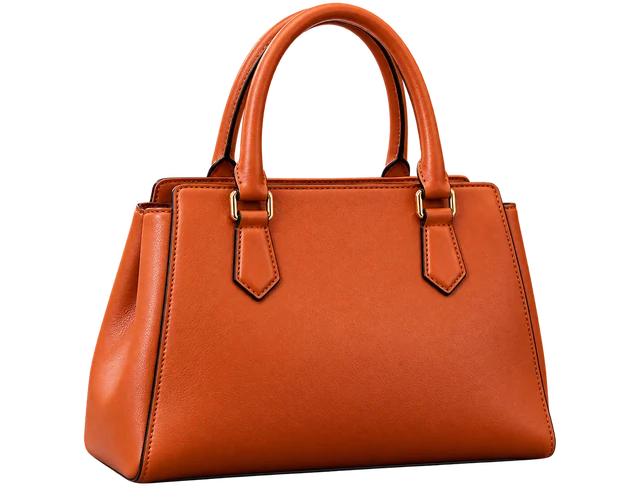
This handbag example shows the subject after background removal. The checkerboard indicates transparency and is not part of the downloaded PNG.
Check handles, gaps and edges before use. If you need a white-background product photo, add a white background in another design tool.
Background removal guide and full example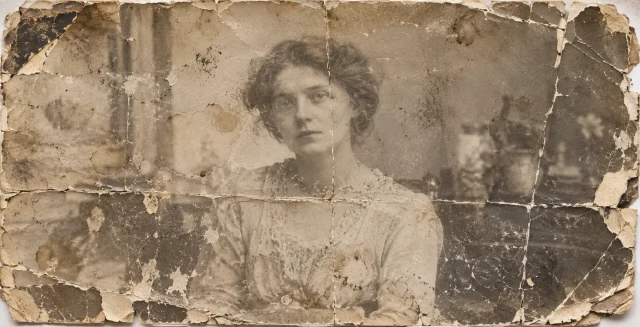

This example shows reduced damage and added color in an old photo. Compare faces and clothing details with the original after restoration.
AI estimates the colors; they are not verified historical colors. Severely damaged or missing information cannot be reliably reconstructed. Keep the original.
Photo restoration guide and full example
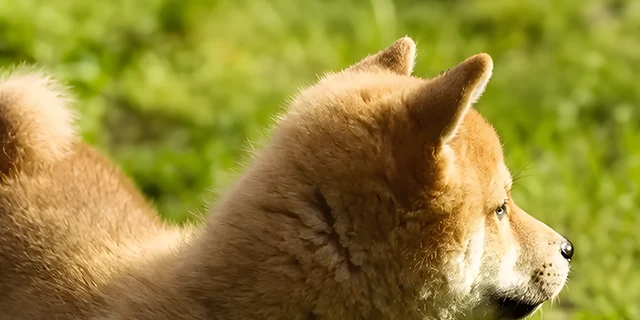
The original is 500 × 705 pixels and the corresponding result is 2881 × 3840 pixels. These crops show the same head area to help you inspect changes.
Both crops are 1200 × 600, not the full 4K image, and are not aligned pixel for pixel. AI may change textures, outlines and other details.
Image upscaling guide and full exampleChoose one tool for a batch, then review and download the results together.
Click the upload area above or drop multiple images into it. You can add more in stages.
Choose background removal, photo restoration or image enhancement, and confirm the output tier.
After starting processing, compare each result with its original and check subjects, faces and important details.
Download one image, or select several and download a ZIP.
Formats, credits and result storage rules, plus details to check after AI processing.
View pricing and free trial detailsJPG, JPEG, PNG and WebP still images are supported. The current per-image upload limit is 25 MB. Images over 10 MB are compressed automatically when submitted for processing; 10 MB is not the upload limit.
Yes. Import multiple images and the system processes them one by one, with results shown together. Batch size depends on available credits and remaining result capacity, shared by all three tools. Download individual images or a ZIP.
Sign up to receive 5 free credits for 1K background removal or photo restoration only. Only one eligible account per network can claim the trial once. Free credits do not expire.
Free trial credits cannot be used for 4K image enhancement. Full-access credits cover all three tools. For available packs, see the pricing page.
No. 4K is the output tier for image enhancement. Actual dimensions depend on the result; they are not fixed at 3840 × 2160 or at four times the original size. More pixels do not guarantee accurate recovery of missing details.
Free and full-access results are kept for 3 days; up to 30 results. Download before expiry. All three tools share this capacity. Check each existing result’s record for its specific expiry time.
You can delete results and their associated original previews from the results list. Expired files are cleared periodically. Images pass through our server and third-party processing services; see the privacy policy.
Yes. Restoration and enhancement may regenerate details, so faces, text, logos and product structure are not guaranteed to stay unchanged. Background removal may also leave background traces or lose complex edges. Keep important originals and check each result against them.